Does AI Design Always Feel Like a Template? huashu-design 3.0: Letting AI See More, Try More, and Avoid Making Every Design Look the Same
Draft six candidates before picking three real directions; using real references, visual specimen sheets, and local records to pull design directions apart.
Huashu released huashu-design 3.0. This is an open-source design skill—a curated set of design instructions, reference materials, and linting scripts meant for an Agent to read. Once an Agent working in the terminal reads these materials, it can follow this methodology to craft web pages, slide decks, and app prototypes.
After installation, the user enters a one-sentence prompt in the terminal of an Agent that supports skill mechanisms. The Agent then autonomously sources assets, arranges layouts, and outputs HTML files. Key supported formats include:
- Interactive prototypes and landing pages: Single-file HTML interactive web prototypes, official websites, and multi-screen app presentation boards;
- Editable slide decks: HTML decks built on a fixed 1920×1080 canvas, supporting export to PPTX presentations for further editing;
- Motion graphics and infographics: Timeline-based CSS/Canvas animations, video storyboards, and long-scroll infographics visualized with open real-world data;
- Three-direction initial drafts: For new visual requirements, the Agent generates three distinct directional design options by default, allowing users to inspect real drafts before picking one to refine.
In terms of scope, huashu-design is tailored for visual prototype exploration and collateral design, rather than production-grade web applications or system engineering requiring backend interactivity. If you prefer not to dive straight into long documentation, you can first watch the author's 16-minute walkthrough tutorial video to get a tangible feel for the results and workflow.
Why Adding More Rules Made Design More Boring
Creators who frequently use AI to write web pages or slide decks often encounter a subtle fatigue: each individual generated page looks tidy and polished, but after several consecutive projects, the layouts and color palettes begin to look eerily similar.
In version 2.0, the skill attempted to diversify options using three separate logics: best designers, real-world references, and the seconds roulette. Yet after months of use, the author noticed a new problem: while each project looked great in isolation, they looked almost identical side by side. A formula of warm paper backgrounds, serif headings, and terracotta accents kept recurring across unrelated projects. Looking back at test cases run under the old version, 3 out of 5 sets suffered color collisions across all three directions, falling into the very same aesthetic family. The root cause was a hardcoded default aesthetic in the legacy skill: warm cream paper plus serifs plus terracotta. Warm paper and serifs can look wonderful; the issue was that wildly different subject matters gravitated toward the exact same look.
Using landing pages, crowdfunding decks, infographics, and app prototypes as test prompts, the author shuffled the before-and-after designs onto a board and conducted blind selections. The three rounds yielded revealing results:
- Round 1 (Won only 1 of 4 prompts): Required a grand metaphor for every direction. As a result, many pages were turned into literal props: a crowdfunding deck was styled as a library checkout card, and an app prototype was forced into a subway transit map. The styling was overdone, obscuring the core information.
- Round 2 (Lost both prompts): Added a "2026 AI Default Aesthetic Checklist" and several guardrails, attempting to steer the Agent away from familiar aesthetics using negative constraints. The Agent became excessively conservative, turning everything into pale, cool tones and rigid grids—utterly bland and lifeless. Meanwhile, dark cards and warm-paper whitespace that had previously shone in the older version were locked out by the rules.
- Round 3 (Won both prompts): Flipped the approach to "add options, not bans"—letting the Agent first inspect tangible, visible specimens and reference works. This did not mean abandoning all rules; template decoration cleanup and readability baselines like font sizes and contrast remained intact, but stylistic exploration was no longer throttled by negative constraints.
Round 3's "winning both prompts" reflects only the author's personal blind choice across a small sample, not a literal "100% aesthetic upgrade" as touted in the original headline. The takeaway worth adopting is to provide tangible options so the Agent has concrete references to explore.


Trying Six Directions First, Then Deepening Three
Version 3.0 requires new visual designs to pass through the "Three Directions Gate" by default; iterations on an already selected direction within the same project, purely mechanical tasks, or explicit user requests to skip can be exempted. Rather than conjuring three options out of thin air, this workflow directs the Agent to explore three distinct avenues, generating 2 candidates per avenue for a total of 6 candidates. In environments supporting multi-Agent setups, these can be generated in parallel; in resource-constrained single-Agent runtimes, they can be processed sequentially. Following initial screening, 3 structurally distinct designs are selected to be built out as real initial drafts in their respective media.
1. Where the Six Candidates Come From
The Agent conceives 2 candidates along each of three paths:
- Best Designers (From Scratch): Considers which designer or studio fits the current subject (e.g., Kenya Hara, Ikko Tanaka, Lu Jingren, Irma Boom), drawing inspiration from their compositional philosophy and negative space from the ground up, rather than superficially copying their signature works.
- Real References (Same-Medium Benchmarks): Looks for standout real-world works within the same medium—apps for apps (such as design award winners), great websites for web pages, quality publications for slide decks. Using the built-in
ref_board.pyscript, references are captured into a mood board so the Agent can visually observe the grid, typographic ratios, and image-text relationships, avoiding guesswork based purely on textual descriptions. - Seconds Roulette (Specimen Sampling): Computes a modulo on the execution timestamp's seconds to draw one style from the current medium's category and another from the cross-medium East Asian category, rather than drawing uniformly across all 84 styles. The style library was expanded from 60 to 84 styles, clearly divided into 20 Web, 20 Deck, 20 Infographic, 12 App, and 12 Chinese & East Asian styles. Every style is paired with a specimen sheet that the Agent must visually inspect before drafting. The roulette nudges the Agent toward visual directions it would not normally consider.


2. Thumbnail Screening Lowers Trial-and-Error Costs
After drafting 6 candidates, the Agent does not immediately write 6 full codebases. Instead, it generates a six-grid thumbnail board named design-demos/thumbs.html (around 480×300 pixels per tile), incorporating real fonts, color palettes, typographic bones, and headings while omitting interactive details for now. The Agent uses visual capabilities to review the thumbnails: if a structure falls apart at the thumbnail stage, a full draft will not succeed either, making pivoting at this stage far less costly.
3. How Options Are Screened
Selecting 3 out of the 6 candidates for full-scale development follows four criteria. The chosen options are candidates filtered by these rules; they do not imply that an algorithm guarantees aesthetic quality, nor is there a strict mandate to retain exactly one from each path (for instance, two Best Designers plus one Roulette selection is completely valid):
- Solid on its own: Has a clear visual focal point and cohesive hierarchy. What fails as a thumbnail cannot be salvaged in full layout.
- Three genuinely distinct directions: Avoids "reskinning." Reskinning means identical grids and font sizes with only colors swapped; genuine distinction lies in compositional bones, image-text balance, and reading flow.
- Avoids recent ledger history: Reads the local ledger; if recent projects have relied on a similar aesthetic or reference, this run actively avoids it.
- Metaphors never go overboard: Evaluated by a single benchmark—if this stylistic device is removed, does the core message become clearer or blurrier? If removing it makes things clearer, it was an overreach (such as turning a page into a library card or forcing it into a subway map). Full-page props or heavy metaphorical framing are capped at one out of the three directions, and only when the subject genuinely calls for it.
each offering a conceptual path2 Candidates
dissected from screenshots2 Candidates
sampled and inspected via specimen sheets2 Candidates
Real fonts, real palettes, real structural bones. Pivoting here saves far more effort than rebuilding six full drafts.
- Solid on its own
- Distinct structural bones across all three
- Avoids repeating recent projects
- Form does not obstruct content
The other three remain fallbacks. Two of the final three can originate from the same path.
How References Become Concrete Designs: Four Case Studies
The author shared four case studies illustrating how these methods translate into actual layouts.
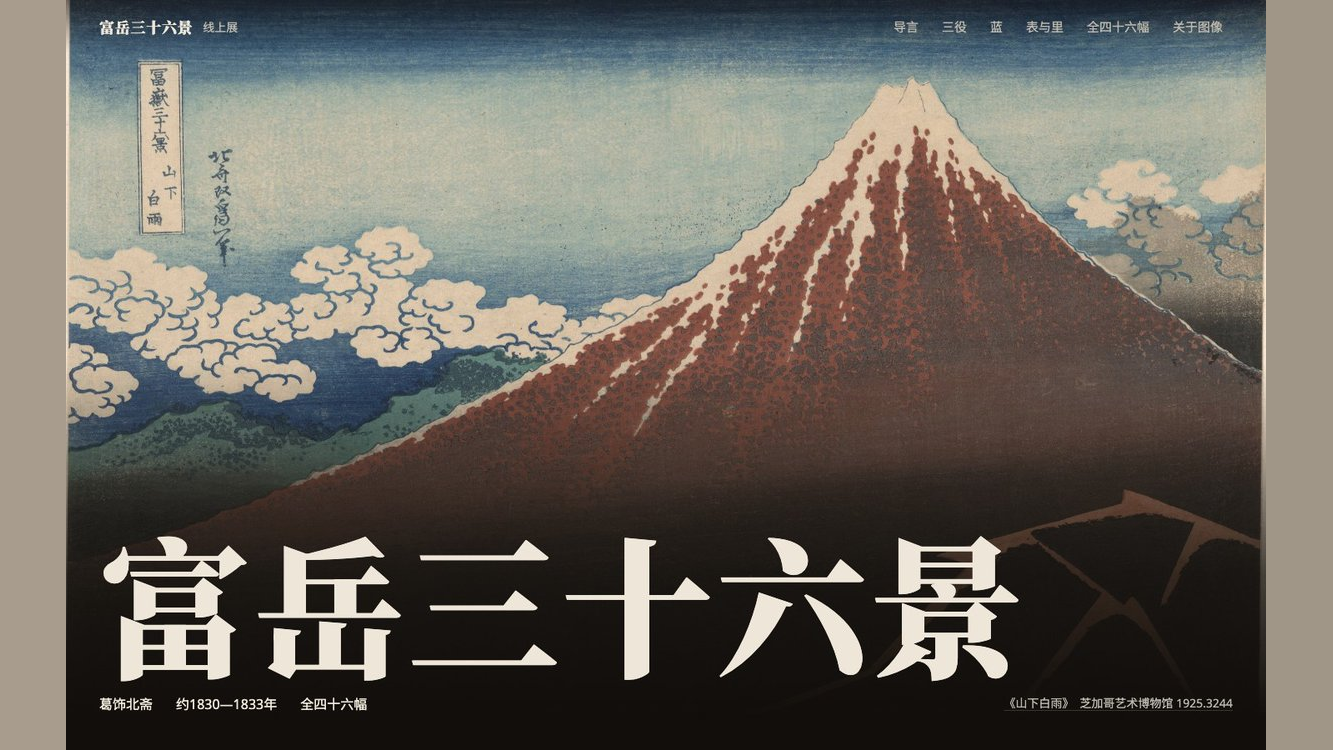
Case 1: Katsushika Hokusai's Thirty-Six Views of Mount Fuji Online Special Exhibition (Web)
For this cultural subject, the three generated directions exhibited noticeably different visual atmospheres: Direction 1 adopted a dark gallery vitrine inspired by Amsterdam's Rijksmuseum; Direction 2 drew on Ikko Tanaka's geometric triangular framing; Direction 3 used the titling labels of traditional East Asian bookbinding.

The hero originally featured *The Great Wave off Kanagawa*, but after a lint check revealed that two directions duplicated the same hero image, it was swapped to *Rainstorm Beneath the Summit* to prevent visual overlap across directions; large Songti/Mincho titling establishes the feel of a special exhibition.
In this case, authentic content structure shaped specific layout decisions:
- All 46 artworks featured in the demo were sourced from open collections at the Art Institute of Chicago and the Metropolitan Museum of Art.
- In the section introducing "Prussian Blue," the layout was built around Met research, displaying deep overprinting alongside light, pure Prussian blue, with a note at the bottom clarifying that screen swatches were sampled from digital image pixels for illustrative purposes only, not spectroscopic pigment measurements.
- After a lint check revealed that two directions redundantly selected The Great Wave off Kanagawa for the hero screen, the dark-room version was updated to Rainstorm Beneath the Summit, diversifying the visual presentation.


Case 2: "BirdTrack" Birdwatching Log Application (App Prototype Board)
Traditional prototype presentations often arrange multiple phones in equidistant rows, resulting in a monotonous visual layout. On the reference board, the author featured CapWords, an Apple Design Award winner, using it as a same-medium reference to borrow its physical photo-sticker journal feel.


Bird assets were clipped from photos into white-bordered journal stickers; metrics like 92% and ratings are prototype mock values and do not prove real recognition capability.
What was borrowed from the reference was the tactile feel of "peeling a sticker from a photo":
- Bird assets were segmented from real Wikimedia photographs into white-bordered stickers, affixed into an annual field journal.
- Birdsong audio waveforms were generated based on real audio recordings, grounding the prototype interface in authentic field-recording scenarios.

Case 3: "What to Eat Tonight" Home Cooking Recipes (App Prototype)
For this prompt, the seconds roulette landed on Lu Jingren's book design style.

One dish per page, with an independent marginalia column along the outer edge for practical tips, and a cinnabar seal accentuating the "Start Cooking" action; shown as a prototype, not a production system.
Editorial design conventions from books were ported over to mobile interfaces to elevate key cooking guidance:
- One dish per page: Pages are structured like an open cookbook, with clear layout hierarchy and concise steps.
- Dedicated marginalia column: A dedicated sidebar margin along the page edge houses practical tips like "Pat dry before frying to prevent splatters" or "Only a few drops of dark soy sauce," keeping core steps separate from tips.
- Cinnabar seal: Across the entire screen, a single cinnabar-red seal is reserved for the "Start Cooking" button, accentuating the primary action without visual clutter.
Case 4: A Panorama of Rivers and Mountains Lecture Deck (Slide Deck)
When crafting the slide deck, the Agent drew on Abbott Miller's dark exhibition display concept under the "Best Designers" path.

The page background is sampled from the darkest tone of the silk ground; a slender thumbnail bar along the bottom of the cover unrolls the complete scroll, framing the exact position corresponding to the current slide.
The layout design closely echoes the viewing experience of a handscroll:
- The dark slide background is directly sampled from the darkest section of the painting's silk ground.
- A slender thumbnail locator bar along the bottom of the cover frames where that slide sits within the 11.9-meter scroll, giving the audience a sense of the whole.
- Subsequent slides unfold alongside the painting's narrative, breaking down the dimensions, the inscription noting "Ximeng, aged eighteen," bean-sized human figures, and the mineral azurite and malachite pigments.

Scripts Check Hard Flaws, Records Guide the Next Choice
Throughout the entire process, huashu-design separates different types of judgment clearly:
- Measurable flaws are checked by scripts: Physical facts—such as whether font sizes are too small, contrast passes standards, or images are broken—are verified directly by
design_lint.pyvia a headless browser. - Aesthetics are judged by the user: Scripts do not judge whether a design is attractive, nor can high scores from a reviewing Agent substitute for user satisfaction; visual appeal is ultimately decided entirely by the user.
- Factual content requires cross-checking against the source text: Typography or contrast scripts cannot detect factual errors in text or data. For example, in a James Webb Space Telescope explainer prompt, the initial draft misread a study's "roughly 100 times more numerous" as "100 times brighter," an error caught and corrected only when an independently spawned checking Agent verified it against the original paper.

1. design_lint.py: Measuring Facts, Not Judging Taste
The script drives a browser to render the page, extract text, and capture screenshots, inspecting only objectively verifiable facts:
- Red Flags (Blocking delivery; must be fixed): Checks for broken image links, body text and labels falling below size thresholds, relative luminance contrast between text and background (requiring 4.5:1 for regular text and 3:1 for large text), and console errors.
- Yellow Flags (Cleaning template decoration): Flags all-caps tracked-out badges, meaningless dot separators (
A · B · C), redundant trailing arrows on buttons (→), isolated colored words within titles, and forced01/02/03numbering on non-sequential content. These habitual decorative flourishes should simply be removed. - Visual Fingerprints and Similarity Alerts: The script extracts background colors, typography, primary palettes, and layout structural vectors for comparison. Average distance between palettes is calculated in the Oklab color space. These similarity checks serve merely as alerts for reskinning or collisions, not absolute aesthetic rulings. If a user's task specifies fixed brand colors and fonts, one can choose to compare only layout skeletons; for naturally repetitive layouts like multi-screen app displays, layout similarity alerts can be safely disregarded. Popular aesthetic families are not inherently flawed, and looking similar does not necessarily make a design bad; heuristic rules must never override aesthetic judgment.
2. Local Memory: Keeping New Projects from Repeating
Enabling new sessions to leverage preferences and aesthetic history from earlier projects requires saving and reloading that data. To avoid repeatedly producing identical aesthetics, 3.0 maintains three types of records in the local ~/.huashu-design/ directory:
- Taste Profile (
experience.md): Records the user's verbatim stated preferences alongside their explicit scope of application. For instance, when the author casually noted "try not to omit anything" during a personal travel archive project, the system logged the request, noting specifically that it applied only to photo archives and should not spill over into product interfaces. - Aesthetic Ledger (
ledger.jsonl): Logs the background category, primary palette, heading typeface, and layout skeleton upon every successful delivery. Running a check before starting a new job proactively avoids recently overused combinations. For example, when the ledger revealed that 5 of the author's last 6 deliveries had used sans-serif headings, subsequent recipe and Hokusai exhibition projects proactively opted for Songti/Mincho to prevent typographic monotony. - Observations and Pitfalls: Separately tracks phenomena observed once in a single project (
observed) from conclusions verified across multiple reproductions or measurements (verified). Only generalized, verified rules are codified into the experience documentation distributed with the skill.

Before starting a new task, the Agent reads relevant texts back into its context to adjust its choices accordingly; model weights remain completely unchanged.
When recording user taste preferences, the Agent must inform the user first; if the user declines, nothing is recorded. These records reside solely on your local machine and are never distributed with the skill. Whether the Agent processes these records using a local or cloud model depends on your specific environment.
How to Get Started
For your first run, you can follow along to build a slide deck: install the skill, run a self-check, send your prompt, review representative slides across three directions, choose a direction, complete the remaining slides, and export. Step-by-step prompts ready to paste to the Agent are provided below, along with corresponding exercises for web, app, and motion.
The author recorded a 16-minute walkthrough video for an earlier version. Although some mechanics have evolved in 3.0 (such as expanding the three directions from immediate drafts to a 6-thumbnail screening phase), the core interaction logic and design philosophy remain consistent. Readers can watch the author's demonstration before diving in:
Beyond watching the complete 16:13 tutorial video, you can jump directly to specific chapters recorded by the author based on your current task:
- 03:09 Slide Deck (PPT) Hands-On Walkthrough
- 06:39 Personal Homepage & Photo Color Extraction
- 10:43 iOS To-Do App Prototype
- 12:47 Product Motion Graphics & Timelines
- 15:46 Installation Methods & Common Setups
1. Preparation: Distinguishing the System Terminal from the Agent Chat
Before beginning, beginners most frequently confuse two interfaces:
- System Terminal (macOS Terminal/iTerm, or Windows PowerShell/CMD): Used to check Node.js environments and run installation or update commands.
- Agent Chat Window (such as Claude Code terminal sessions, Cursor Chat sidebar, Codex, etc.): Used to submit specific design prompts and revision requests to a model with the skill loaded.
huashu-design is a Skill pack; it is neither a standalone app with a GUI nor an independent cloud SaaS. It relies on an underlying Coding Agent equipped with a capable model and basic execution permissions. Design quality and code generation capabilities depend on the reasoning and multimodal capabilities of your host Agent's underlying model.
In your computer's terminal, first verify that Node.js and npx are installed:
node --version
npx --version
If the terminal returns command not found, the runtime environment is missing. Please visit the official Node.js website at nodejs.org to download and install the current LTS (Long Term Support) release. Reopen your terminal after installation and run both commands again to confirm.
To keep generated files from scattering across your system, create a dedicated project directory in your terminal and navigate into it:
mkdir huashu-demo
cd huashu-demo
Skill installation paths vary across different host Agents; do not assume that all hosts write configuration files to the same global directory.
2. Installation, Directory Verification, and Session Loading
In your system terminal, run the officially recommended installation command:
npx skills add alchaincyf/huashu-design
Once run, the interactive installer typically lists detected host environments (such as Claude Code, Cursor, Codex, etc.). Use the arrow keys to select the Agent you actively use, then confirm the installation.
Verifying Directory Completeness
After installation, always inspect the file structure of the installation directory. huashu-design contains numerous specimens, style references, export scripts, and prebuilt components—it is far more than a solitary SKILL.md file. Taking the default Claude Code path (~/.claude/skills/huashu-design/) as an example, a complete installation directory must contain at least the following:
SKILL.md: Core workflow documentation and specification protocols;references/: Handbooks for web, slides, infographics, and motion, along with typographic guides;assets/: 84 native style specimens, device frame components (ios_frame.jsx, etc.), and sound effect libraries;scripts/: Lint scripts (design_lint.py), reference board tools (ref_board.py), and memory management scripts;demos/: Basic demonstrations across capability modules.
If inspecting the path reveals only a solitary SKILL.md, the README notes an issue where older skills CLI versions (≤1.5.15) synced only single files. You can reinstall using the @latest tag:
# Run in system terminal
npx skills@latest add alchaincyf/huashu-design
Confirming the Agent Loaded Correctly
Do not assume that asking questions in an existing, previously opened session will automatically load the new Skill. Open a fresh session in your host Agent and send a clear instruction prompting the model to read and inspect itself:
Task:
Please read the installed huashu-design SKILL, and report the detected version number and the current skill root directory path.
Once the Agent explicitly confirms it has loaded version 3.0.0 and can locate the references and scripts paths, you are ready to begin.
If the CLI installation remains incomplete, the repository also provides a Git-based clone method; this likewise requires access to GitHub. Using the explicit Claude Code path from the README:
# Run in system terminal
git clone https://github.com/alchaincyf/huashu-design.git ~/.claude/skills/huashu-design
If an older folder with the same name already exists in the destination, back it up or confirm the path first rather than blindly overwriting it. For subsequent updates, simply run git pull in the clone directory or rerun the install command.
3. Complete Hands-On Walkthrough: 30-Minute Slide Deck (Four Conversation Rounds)
Slide decks provide a classic scenario weaving together requirement clarification, the Three Directions Gate, content detailing, and editable export. The following walkthrough references the case from 03:09–06:39 of the author's video: creating a 30-minute in-person slide deck explaining Coding Agents and Claude Code to non-technical white-collar professionals.
This exercise divides production into four rounds, inspecting results after each round before moving forward, avoiding discovering an unsuitable direction only after the work is finished.
Round 1: Initial Prompt (Clarifying Audience, Topic, and Three Directions Gate Constraints)
In your newly created exercise directory, open a chat with your Agent and send the following structured initial prompt. Note: Prompts in this article are adapted from the author's workflow demonstrations; readers can send either the English translation or the original reference block to the Agent:
Task:
I want to create a slide deck for an in-person presentation introducing Coding Agents and the core concepts of Claude Code to non-technical white-collar professionals. The presentation will last about 30 minutes. Please follow huashu-design specifications:
1. The audience has no programming background. Base the design on official Anthropic public materials and brand aesthetics, without inventing non-existent features;
2. Strictly follow the "Three Directions Gate": first conceive 6 candidate thumbnails and recommend 3 structurally distinct directions, creating only the 2 most representative slides per direction (cover and key content slide);
3. Stop and wait for my visual review once the representative slides for the 3 directions are generated; do not batch-generate subsequent slides before I confirm;
4. Final deliverables must include a browser-playable HTML deck, a vector-searchable PDF, and an editable PPTX file with double-clickable text boxes for presentation software.
English Reference Prompt
Task:
I need to create a slide deck for an in-person presentation introducing Coding Agents and the core concepts of Claude Code to non-technical white-collar professionals. The presentation will last about 30 minutes. Please follow the huashu-design workflow:
1. The audience has no programming background. Base the design on official public materials and authentic brand style, without inventing non-existent features;
2. Strictly follow the Three Directions Gate: first generate a 6-candidate thumbnail board, pick 3 structurally distinct directions, and build only 2 representative showcase slides per direction (cover and key content slide);
3. Stop and wait for my visual review once the 3 directions are ready; do not batch-generate the rest of the deck without approval;
4. The final delivery must include a browser-playable HTML Deck, a vector-searchable PDF, and an editable PPTX file with double-clickable text boxes.
Expected results for this round: The Agent creates design-demos/thumbs.html (the 6-grid thumbnail overview) as well as three subdirectories: design-demos/dir-1/, dir-2/, and dir-3/, outputting the HTML and screenshots for 2 representative slides in each. Concurrently, the Agent lists brief clarifying questions regarding audience depth or focus cases, waiting for your feedback.
Round 2: Adding Context & Confirming Direction (Early Alignment)
At this stage, the Agent acts like a junior designer, presenting concrete options first and validating assumptions. You need to review the screenshots, select your preferred visual structure, and answer unresolved questions:
Send an instruction confirming your direction or requesting a blend. The direction numbers and features below serve as examples; replace them with the actual options you see and choose:
Task:
I have reviewed the screenshots of the representative slides across all three directions:
1. Overall, I choose Direction 1's dark exhibition structure and typography contrast hierarchy, but I want to blend in the gentle card accent color from Direction 3;
2. The audience's core pain point lies in daily office document processing and information gathering; please center the case studies on everyday white-collar workflows, omitting low-level CLI parameters;
3. Please record my selection into direction-approved.md, lock the current design system, and output a complete draft outline of 8–10 slides for my review.
English Reference Instruction
Task:
I have reviewed the screenshots of the three directions:
1. I choose Direction 1's dark exhibition layout and typography hierarchy, but blend in Direction 3's softer card accent color;
2. The audience's main pain point is daily office document processing and info gathering; focus the examples on everyday white-collar tasks, skipping low-level CLI parameters;
3. Record my choice into direction-approved.md, lock this design system, and draft a complete 8-10 slide outline for my review.
Expected results for this round: The Agent generates direction-approved.md in the project root, logging your verbatim feedback and blending decisions; it then supplies a slide outline covering the cover, pain point introduction, product concepts, practical white-collar workflows, common concerns, and summary.
Round 3: Approving the Structure, Generating Remaining Slides, and In-Place Tweaking
Once the outline is approved, the Agent begins batch-authoring individual slide components. Because slide decks default to a "multi-file + overview shell" architecture, each slide should be a self-contained HTML file:
Task:
The outline structure looks good. Please generate all remaining individual slide HTML files following the locked design system. Requirements:
1. Save each page independently as slides/slide-*.html. Never hardcode page numbers inside slide content; let the outer overview shell handle indexing uniformly;
2. For Slide 4 ("Core Case Comparison"), use a side-by-side two-column layout to clearly contrast "manual step-by-step processing" against "Agent-assisted collaborative processing" for the same office task; do not add time or efficiency numbers without measured records;
3. Strictly enforce readability thresholds: body text >= 24px, annotations and labels >= 16px, maintaining global layout consistency.
English Reference Instruction
Task:
The outline looks good. Please generate the remaining slide HTML files according to the locked design system:
1. Save each page independently as slides/slide-*.html. Never hardcode page numbers inside slide content; let the shell overview manage indexing;
2. For Slide 4 (Case Comparison), use a side-by-side card layout comparing manual steps and Agent-assisted steps for the same office task; do not add time or efficiency figures without measured records;
3. Strictly enforce readability thresholds: body text >= 24px, label/annotation >= 16px, maintaining global visual coherence.
Expected results for this round: Individual slide files and an index.html used to assemble the overview are generated in the project directory. Open index.html in your browser to view the entire deck using the page's navigation controls and overview view, then test the keyboard arrow keys to ensure navigation works properly.
Round 4: Exporting Deliverables and Slide-by-Slide Verification
After completing the HTML walkthrough, instruct the Agent to call the built-in export toolchain to generate formal deliverables:
Send the export prompt:
Task:
Review of the complete slide deck is finished. Please proceed with export and linting:
1. Call the PDF export script from your confirmed huashu-design installation root to generate a searchable-text PDF for this project;
2. Choose the appropriate PPTX export path based on the current HTML structure, aiming for editable text rather than a full-page screenshot;
3. Call design_lint.py from the installation root to check font sizes, contrast, broken images, and console errors; separately inspect slide screenshots for clipping and overlap, and report PPTX text comparison results and any unresolved failed checks.
English Reference Instruction
Task:
The slides have been verified in browser. Please proceed with export and linting:
1. Call the PDF export script from the confirmed huashu-design installation root for this project;
2. Choose the PPTX export route suited to the current HTML, aiming for editable text rather than a full-page screenshot;
3. Run design_lint.py from the installation root for typography, contrast, broken images and console errors. Separately inspect slide screenshots for clipping and overlap, and report PPTX text comparisons and any failed checks.
Expected results for this round: .pdf and .pptx files with matching names are generated. The repository distinguishes export routes based on HTML structure: decks coded strictly against export constraints can use export_deck_pptx.mjs; arbitrary visual HTML may use pptx_from_rendered.py, extracting text and coordinates from browser rendering output. Have the Agent report which route it used and the text comparison results. Once comparison checks pass, open the file in your presentation software to verify editability and layout.
4. Practical Differences Across Web, App Prototypes, Motion, and Infographics
While the general workflow (Three Directions Gate and requirement clarification) applies across all tasks, each medium carries distinct input specifications and technical boundaries:
A. Web Pages and Personal Homepages (Photo Color Extraction and Brand Specifications)
In the author's demonstration from 06:39–10:43, creating a personal homepage avoids cookie-cutter templates by extracting a distinct color palette from real user-supplied photos or brand assets:
- Input requirements: Place posters you admire, store photos, or brand logo files into the project directory (e.g.,
assets/sample.jpg), and explicitly instruct the Agent to extract primary and accent colors, codifying them intobrand-spec.md. Provide genuine biographical details and social accounts; do not let the Agent fabricate experiences, press coverage, or quotes. - Copyable initial prompt (adapted from demo):
Task: I want to create a personal bio and project portfolio landing page. Please inspect my reference photo at assets/sample.jpg, analyze and extract representative color values using scripts, and write them into brand-spec.md as a design specification. Then follow the Three Directions Gate to provide 3 distinct layout concepts. Display my actual projects and social links truthfully; do not fabricate any unsupplied titles or credentials. - Follow-up fine-tuning prompt:
Task:
Among the three versions, I select Direction 2. In the hero visual, replace the abstract placeholder with my actual portrait photo avatar.jpg; inspect the navigation bar and body text sizes on mobile (375px viewport) to ensure body text is no smaller than 16px.
English Reference Instruction
Initial prompt:
I want to build a personal profile and portfolio landing page. Please inspect my reference image assets/sample.jpg, extract its dominant and accent color values into brand-spec.md as CSS variables, and follow the Three Directions Gate to present 3 distinct layout concepts. Display my actual projects and links honestly; do not fabricate credentials or quotes.

Follow-up prompt:
I choose Direction 2. Replace the abstract hero placeholder with my actual photo avatar.jpg. Check the navigation and typography on mobile (375px viewport) to ensure body text is >= 16px.
B. Mobile App Prototypes (Making Four Screens Truly Clickable)
In the author's case study from 10:43–12:47, a to-do management app prototype inspired by The 7 Habits of Highly Effective People is demonstrated:
- Key considerations: You can have the Agent reuse the skill pack's
assets/ios_frame.jsxdevice bezel and assemble core screens into a presentation board. The board makes it easy to evaluate the overall look; when following along, also ensure core interactions are wired up—such as creating tasks, closing modals, checking items off, and returning to home. Polished four-screen screenshots alone do not prove these flows are operational. - Copyable 4-screen exercise prompt (labeled as exercise, organized from actual task):
Task:
[Practice Exercise] Please create a high-fidelity interactive prototype for a four-quadrant time management iOS app. Requirements:
1. Use the standard iPhone 15 Pro device bezel provided by assets/ios_frame.jsx; do not handwrite the Dynamic Island or battery status bar;
2. Lay out 4 core screens side by side into a composed presentation board: ① "Today's Quadrants" Home, ② "New Task" Modal, ③ "Task Details & Circle of Influence Analysis" Page, ④ "Completed Archive & Weekly Review" Page;
3. Provide a clickable four-screen prototype: supporting tab switching, modal open and close, checking off tasks, and clear back-navigation routes across screens;
4. Use high-quality mock data conforming to four-quadrant logic, clearly designating this as an interactive front-end demo rather than a production backend system.
English Reference Prompt
Task:
[Practice Exercise] Please create a high-fidelity interactive iOS app prototype for Eisenhower Matrix task management:
1. Bind strictly to assets/ios_frame.jsx for the standard iPhone 15 Pro bezel; do not handwrite dynamic islands or status bars;
2. Lay out 4 core screens on a composed presentation board: ① Matrix Dashboard Home, ② New Task Modal, ③ Task Detail & Circle of Influence, ④ Archive & Weekly Review;
3. Make the four-screen prototype clickable, including tab switching, modal toggles and task completion, with clear back-navigation routes;
4. Populate with realistic task data, explicitly marking this as an interactive front-end demo rather than a production backend system.
C. Promotional & Concept Motion Graphics (Real Asset Verification and Timelines)
In the author's 12:47 case study, a 15–20 second 16:9 horizontal promo animation was created for Bilibili's newly released AI video tool "Huasheng":
- Key considerations: Motion design is not static slide text fading up line by line. Prior to production, the Agent must confirm product existence via WebSearch and fetch official logos and brand gradients; during the Three Directions stage, it must first submit rendered keyframe moodboards and storyboard cards for confirmation before writing code.
- Environment and performance notes: Exporting MP4/GIF, mixing BGM, or synthesizing voiceovers heavily depends on whether your local host environment has Node.js, Playwright, and ffmpeg configured. You can inspect HTML animations in the browser first, but missing export dependencies still need to be installed. A 60fps video derived from a base 25fps video might rely on frame duplication or interpolation, distinct from a true 60fps pipeline with frame-by-frame seeking; labeling a file as 60fps does not on its own prove richer motion detail. Unofficial promos must truthfully state their attribution.
- Copyable initial prompt (adapted from demo):
Task:
I want to create a 15–20 second, 16:9 ratio unofficial promo animation for an AI video tool named "Huasheng AI":
1. First verify the official logo, core visual palette, and primary features of the product via web search;
2. Follow the Three Directions Gate by first providing a direction board with still keyframe screenshots and a color palette, accompanied by a brief storyboard script for my selection;
3. Once chosen, drive continuous narrative via a timeline, highlighting the dynamic transition from "entering a prompt to one-click video generation," avoiding slide-like fade-up cuts;
4. Keep the "Created by Huashu-Design · Unofficial Tribute" watermark intact in the bottom right corner of the outro.
English Reference Prompt
Task:
I want to produce a 15-20 second, 16:9 ratio unofficial motion promo for a video AI tool named "Huasheng AI":
1. First verify the official brand logo, color gradient, and key feature list via WebSearch;
2. Comply with the Three Directions Gate: present motion moodboards with rendered keyframe screenshots and a light storyboard first;
3. Once approved, build a timeline-driven continuous narrative highlighting the "prompt to final video" transformation, avoiding slide-like fade-up cuts;
4. Keep the "Created by Huashu-Design · Unofficial Tribute" watermark at the bottom right of the outro.
D. Infographics and Long Data Scrolls (Data Integrity and Viewport Scaling)
In data visualizations and science explainers, the core principle is that data is the protagonist of the graphic, not typographic ornament:
- Input requirements: Provide verifiable data sources and define the reading context (such as a 1080px-wide mobile long scroll for Xiaohongshu, or a horizontal chart embedded in an article). Choose visual forms based on numeric relationships (proportional areas for part-to-whole, continuous curves for temporal progression, comparison grids for multi-dimensional benchmarks). Benchmark scores shown in demos serve purely as layout mockups and do not represent active evaluations.
- Check font sizes at final mobile dimensions: The repository sets 1080px canvas baselines at body text ≥36px and labels ≥28px. However, once scaled down to a 390px mobile screen, these shrink to roughly 13px and 10px, which cannot guarantee comfortable readability. Inspect exports at their actual display width; if annotations are too small, increase font sizes or split the graphic rather than checking only the full-canvas view.
5. Local Adjustments, Tweaks Sliders, and Five-Dimensional Reviews
How you refine and verify deliverables after the initial draft directly determines final polish:
Targeted Revisions and Preserving Locked Styles
When you are broadly satisfied and only need to tweak specific copy or spacing, explicitly instruct the Agent to "modify only the indicated area, strictly preserving established color variables, fonts, and remaining components," preventing the Agent from misinterpreting the request as a redesign and rewriting approved layouts.
Real-Time Parameter Tuning with Tweaks
You can ask the Agent to add a Tweaks control panel to the HTML, using sliders or toggles to adjust the few parameters that genuinely impact the design, such as color, font size, density, or layout. Specific controls depend on the piece; not every output automatically includes four fixed toggles.
Toggle the tuning controls in the page to preview changes live. If implemented using localStorage, settings persist in your current browser but are not automatically written back to the source HTML file, and will not carry over if you switch browsers or share the file. Once satisfied, send a follow-up:
Task:
Please bake my currently selected colors, font sizes, and layout into the HTML as default values, and re-export the deliverables. Then clear local storage or open in a different browser to verify that this version persists. Modify only these parameters while preserving the approved direction and all other content.
Boundaries of the Five-Dimensional Expert Review
Entering "Perform a 5-dimension review on this design" prompts the Agent to score the page against built-in criteria:
Crucial perspective: The 0–10 scores and radar chart produced across the five dimensions (Philosophical Consistency, Visual Hierarchy, Detail Execution, Functionality, Innovation) are fundamentally heuristic evaluations generated by a model against preset rules; they must never be mistaken for objective design taste ratings. Their primary value lies in generating concrete Keep / Fix / Quick Wins checklists to catch hard flaws like weak contrast or uneven spacing. If a model's high-score suggestion clashes with your aesthetic instinct, always trust your instinct.
Final Delivery Checklist
Before delivering assets to stakeholders or deploying them live, verify each item against these concrete criteria:
- HTML Prototypes: Open them in actual desktop and mobile browsers, click every tab, button, and accordion, and open Developer Tools (F12) to ensure the Console is free of red errors;
- PDF Presentations: Inspect slide edges for clipped text, and confirm text can be highlighted, selected, and copied with a cursor;
- PPTX Decks: Open them in actual PowerPoint, WPS Office, or Keynote, double-clicking text boxes across slides to verify text can be edited, wrapped, and revised, rather than being locked as full-page static images;
- Videos & Animations: Play through completely to ensure there are no flickering black or white frames at the start or end, and verify that BGM and sound effects (SFX) play properly;
- Responsive Widths: Use browser Developer Tools to simulate a 375px mobile screen, checking for unintended horizontal scrollbars or overflowing text.
6. Troubleshooting and Fix Instructions
When encountering issues, send the actual error output or screenshots to the Agent rather than simply stating "it broke."
Lint script missing playwright or pillow. Have the Agent inspect the Python environment running the script, install the missing dependencies and browsers within that same environment, and rerun. If you cannot install them immediately, perform manual screenshot and click checks in an actual browser, and explicitly note in the delivery that automated linting was not run, rather than recording it as passed.
Six candidates and three representative directions do not appear. First check whether the installation directory is complete and whether the current session loaded the skill, then send: "Please read the installed huashu-design specifications. First present a six-grid thumbnail board of candidates along with representative slides for three distinct directions. Pause after displaying them and wait for my selection before proceeding." A model failing to follow steps can simply be instruction failure; do not assume the installation is broken based solely on output.
Double-clicking PPTX selects only a full-page image. Send: "Please inspect which PPTX export route in the skill pack suits this HTML, call the appropriate script from your confirmed installation root, and preserve genuine text boxes; report text comparison results, and verify editability in presentation software."
Images disappear after moving HTML to another folder. Check whether images rely on project-relative paths or temporary URLs, then request: "Please bundle all required delivery assets together, or embed them inline into a single HTML file where appropriate. Copy the delivery files to a new directory, reopen, and verify all images and links."
7. Modular Evolution, Bug Fixes, and Open-Source Licensing
The release notes also highlight two engineering updates: trimming SKILL.md from 593 to 215 lines by breaking medium-specific guides into submodules; and fixing bare text loss in PPTX exports (#56) alongside post-export text verification. These updates help organize rules and linting results, though they do not guarantee flawless generation or export every time.
The repository is distributed under the MIT License, permitting use in personal and commercial projects; model API calls, host Agents, or external services remain billed according to their respective pricing, and third-party images, fonts, and brand assets used in projects must be checked separately for licensing. huashu-design primarily assists with visual concepts and clickable prototypes; complete applications requiring authentication, databases, and infrastructure still require downstream engineering.
From your first exercise to final delivery, the most valuable habit to keep is: inspect concrete designs first, make a deliberate choice, reopen after revisions, and verify in the target application after export. That is how a broader range of design options turns into files you can actually use.
Members can copy or download the full Markdown, and let their AI subscribe and ask.
Found this useful? Leave your email — one email a night with that day's new explainers. Unsubscribe anytime.